
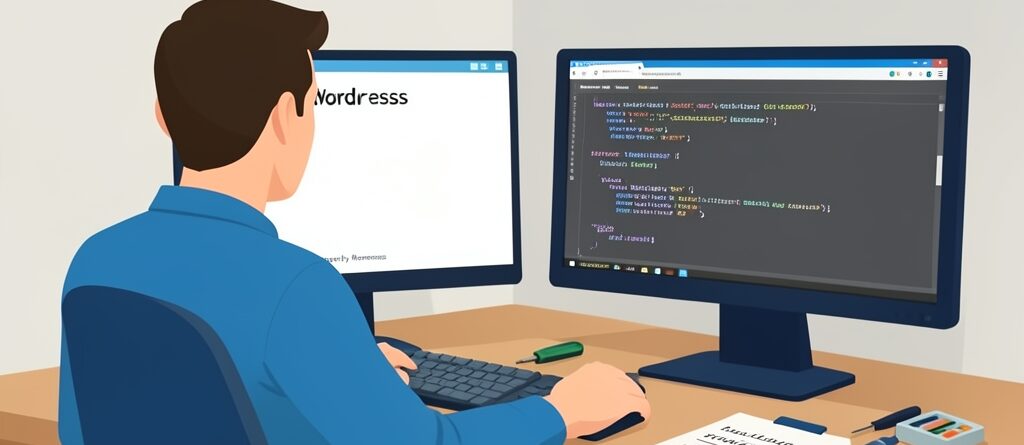
WordPress Website Suddenly Shows White Screen? How to Fix It Without Panicking
WordPress Website Suddenly Shows White Screen? How to Fix It Without Panicking
You refresh your WordPress site, and suddenly….nothing. Just a blank, white screen. No error message, no login page, no clue what went wrong. This is the infamous WordPress white screen of death (WSOD), and it’s one of the most frustrating issues site owners face. The good news? It’s almost always fixable, even if you’re not a developer.
Before you start sweating, take a deep breath. The WSOD usually happens because of a plugin conflict, a theme issue, or a PHP memory limit problem. Sometimes, it’s as simple as a corrupted file or a fatal error in your code. The key is to stay calm and follow a systematic approach to diagnose and fix the problem. In this guide, we’ll walk you through the most effective WordPress white screen fix methods, step by step, so you can get your site back online without losing your mind.
Why Does the WordPress White Screen Happen?
The WSOD isn’t random, it’s usually a symptom of a deeper issue. Here are the most common causes:
- Plugin conflicts: A new plugin or an update to an existing one can break your site. Even well-coded plugins can clash with each other or your theme.
- Theme issues: A poorly coded theme or an update that didn’t install correctly can cause the white screen. This is especially common if you’re using a custom or third-party theme.
- PHP memory limit: WordPress needs enough memory to run smoothly. If your site hits the memory limit, it can crash and show a white screen.
- Corrupted files: A failed update or a hacked site can corrupt core WordPress files, leading to the WSOD.
- Fatal errors: A syntax error in your theme’s
functions.phpfile or a plugin can cause WordPress to fail silently, resulting in a blank screen.
Now that you know what might be causing the problem, let’s dive into the fixes.
Step 1: Enable Debugging to Identify the Problem
Before you start guessing, enable WordPress debugging. This will show you the exact error causing the white screen, making it easier to fix. Here’s how:
- Access your site’s files via FTP or your hosting provider’s file manager. Look for the
wp-config.phpfile in the root directory. - Open
wp-config.phpand find the line that says/* That's all, stop editing! Happy blogging. */. - Just above that line, add the following code:
define( 'WP_DEBUG', true );
define( 'WP_DEBUG_LOG', true );
define( 'WP_DEBUG_DISPLAY', false );
This will log errors to a file called debug.log in the wp-content folder. Refresh your site, and then check the log file for clues. If you see an error like Fatal error: Allowed memory size exhausted, you’ll know it’s a memory issue. If it points to a specific plugin or theme, you’ve found your culprit.
Step 2: Increase PHP Memory Limit
If the debug log shows a memory error, you’ll need to increase the PHP memory limit. Here’s how:
- Open
wp-config.phpagain and add this line just before/* That's all, stop editing! */:
define( 'WP_MEMORY_LIMIT', '256M' );This increases the memory limit to 256MB, which is usually enough for most sites. If your hosting provider restricts memory limits, you may need to contact them for help.
If increasing the memory limit doesn’t work, try adding this line to your .htaccess file (if you’re using Apache):
php_value memory_limit 256MFor Nginx users, you’ll need to edit the server configuration file. If you’re not comfortable doing this, ask your hosting provider for assistance.
Step 3: Deactivate All Plugins
Plugins are the most common cause of the WSOD. If you can’t access your WordPress dashboard, you’ll need to deactivate plugins manually via FTP or your hosting file manager.
- Navigate to the
wp-contentfolder and find thepluginsdirectory. - Rename the
pluginsfolder to something likeplugins_old. This will deactivate all plugins at once. - Refresh your site. If the white screen is gone, you know a plugin was the problem.
- Rename the folder back to
pluginsand reactivate each plugin one by one, refreshing your site after each activation. When the white screen reappears, you’ve found the troublesome plugin.
Once you’ve identified the problematic plugin, delete it or replace it with an alternative. If you’re not sure which plugin caused the issue, check the debug.log file for clues.
Step 4: Switch to a Default Theme
If deactivating plugins didn’t fix the issue, your theme might be the problem. Here’s how to test it:
- Navigate to the
wp-content/themesfolder via FTP or your hosting file manager. - Find your active theme’s folder and rename it (e.g.,
twentytwentyone_old). This will force WordPress to switch to a default theme like Twenty Twenty-One or Twenty Twenty-Two. - Refresh your site. If the white screen is gone, your theme was the issue.
If your theme is the problem, try reinstalling it or switching to a different one. If you’re using a custom theme, contact the developer for support. Avoid using poorly coded themes, as they can cause more problems down the line. For long-term stability, consider investing in website maintenance packages to keep your site running smoothly.
Step 5: Check for Corrupted WordPress Files
If neither plugins nor themes are the issue, your WordPress core files might be corrupted. Here’s how to fix them:
- Download a fresh copy of WordPress from WordPress.org.
- Extract the files and delete the
wp-contentfolder andwp-config.phpfile from the downloaded package. These contain your site’s unique data and shouldn’t be overwritten. - Upload the remaining files to your site via FTP, overwriting the existing ones. This will replace any corrupted core files without affecting your content or settings.
After replacing the files, refresh your site. If the white screen is gone, you’ve fixed the issue. If not, move on to the next step.
Step 6: Restore from a Backup
If all else fails, restoring your site from a backup is the safest option. Most hosting providers offer automated backups, or you can use a plugin like UpdraftPlus to create manual backups.
Here’s how to restore from a backup:
- Access your hosting provider’s backup tool or your backup plugin’s dashboard.
- Select a backup from before the white screen appeared and restore it.
- Wait for the restore process to complete, then refresh your site.
If you don’t have a backup, you may need to rebuild your site from scratch. This is why regular backups are crucial—don’t wait until it’s too late! For added security, consider website security services to protect your site from future issues.
Step 7: Contact Your Hosting Provider
If you’ve tried everything and the white screen persists, the issue might be on your hosting provider’s end. Server misconfigurations, PHP version incompatibilities, or hardware failures can all cause the WSOD. Contact your hosting support team and provide them with the details of the steps you’ve taken. They may be able to identify and fix the problem for you.
Preventing the WordPress White Screen in the Future
Now that you’ve fixed the issue, take steps to prevent it from happening again. Here’s what you can do:
- Keep WordPress, plugins, and themes updated: Outdated software is a common cause of conflicts and security vulnerabilities. Enable automatic updates where possible.
- Use a staging site for testing: Before making changes to your live site, test them on a staging site. This way, you can catch issues before they affect your visitors.
- Monitor your site’s health: Use tools like Health Check & Troubleshooting to monitor your site’s performance and identify potential issues.
- Invest in professional maintenance: If you’re not comfortable troubleshooting issues yourself, consider hiring a professional. Regular maintenance can prevent problems before they start. Check out website maintenance packages for reliable support.
Summary
The WordPress white screen of death is frustrating, but it’s not the end of the world. By following the steps in this guide, you can diagnose and fix the issue without panicking. Start by enabling debugging to identify the problem, then work through the fixes by deactivating plugins, switching themes, increasing memory limits, and restoring backups if necessary. If all else fails, don’t hesitate to contact your hosting provider for help.
Prevention is key. Keep your site updated, use a staging environment for testing, and invest in regular maintenance to avoid future issues. With the right approach, you can keep your WordPress site running smoothly and avoid the dreaded white screen.
You Might Be Wondering (FAQ)
1. Why does my WordPress site show a white screen after updating a plugin?
A white screen after updating a plugin usually means the plugin is incompatible with your current WordPress version, theme, or another plugin. The update might have introduced a bug or conflict. To fix it, deactivate the plugin via FTP by renaming its folder in wp-content/plugins. If the site loads, the plugin is the issue. Try reinstalling the plugin or finding an alternative.
2. Can a WordPress white screen fix itself?
No, the WSOD won’t fix itself. It’s caused by an underlying issue, like a plugin conflict, theme problem, or memory limit..that needs to be addressed. Ignoring it can lead to bigger problems, like data loss or security vulnerabilities. Follow the troubleshooting steps in this guide to resolve it.
3. How do I access my WordPress site if the admin dashboard is also showing a white screen?
If the admin dashboard is also white, you’ll need to access your site via FTP or your hosting file manager. Navigate to wp-content/plugins and rename the plugins folder to deactivate all plugins. If that doesn’t work, rename your active theme’s folder in wp-content/themes to force WordPress to switch to a default theme. This should restore access to your dashboard.
4. Is the WordPress white screen a sign of a hacked site?
While the WSOD can be caused by a hack, it’s not the most common sign. Hacked sites often show defaced pages, spam links, or redirect visitors to malicious sites. However, if you suspect a hack, check your site’s files for unfamiliar code or scripts. Use a security plugin like Wordfence to scan for malware. For added protection, consider website security services.
5. What’s the fastest way to fix a WordPress white screen?
The fastest way depends on the cause. If you suspect a plugin or theme issue, deactivate them via FTP first. If that doesn’t work, enable debugging to identify the error. Increasing the PHP memory limit is another quick fix if the debug log shows a memory error. If you’re not comfortable troubleshooting, restoring from a recent backup is the fastest and safest option.



Leave a Reply