VPS CPU Suddenly at 100%? How to Identify the Cause
VPS CPU Suddenly at 100%? How to Identify the Cause
Getting a notification that your server is lagging or finding your website completely unresponsive is a nightmare for any business owner. When you log into your terminal and see that your linux cpu 100 percent usage is peaking, the first instinct is often panic. You might think your server is under attack or that your code has a massive bug. In reality, high CPU usage is a common symptom of several different underlying issues that can be fixed with the right approach.
The problem with a VPS is that you share some physical hardware resources. If your CPU hits the ceiling, the hosting provider might throttle your performance, or worse, your server might crash entirely. Identifying the root cause quickly is the difference between five minutes of downtime and five hours of lost revenue. You need to move from guessing to diagnosing using the tools already available in your Linux environment.
In this guide, we will walk through the practical steps to find out exactly what is eating your resources. We will cover everything from malicious bots and hidden malware to poorly configured PHP workers and runaway system processes. By the end, you will know how to stop the bleeding and prevent it from happening again.
Common Reasons Your Linux CPU 100 Percent Usage Occurs
Before diving into the commands, it is important to understand what actually causes a CPU spike. It is rarely just one thing. Usually, it is a combination of traffic surges and inefficient resource management. For instance, a sudden spike in visitors is great for business, but if your caching is not set up correctly, every single visit triggers a heavy PHP process that drains the CPU.
Malicious Bots and Brute Force Attacks
Bots are everywhere. Some are helpful, like Googlebot, but others are designed to scrape your content or find vulnerabilities in your plugins. A common scenario is a WordPress brute force attack where a bot tries thousands of password combinations per second on your wp-login.php page. This creates a massive amount of overhead for the server to process these requests, leading to a linux cpu 100 percent situation.
PHP Worker Overload
PHP is a synchronous language. If you have a script that takes five seconds to run and you get ten visitors at the same time, those workers will pile up. If your PHP-FPM pool is configured to allow too many children, they will fight for CPU cycles. If it is too low, visitors will see 504 Gateway Timeout errors while the CPU remains pegged at maximum capacity because the server is struggling to manage the queue.
Malware and Cryptojackers
If you have a weak password or an outdated plugin, hackers might gain access to your server. They rarely steal your data immediately. Instead, they install a cryptominer. These scripts are designed to use every single available CPU cycle to mine cryptocurrency for the attacker. You will notice that your CPU is at 100 percent even when you have zero visitors on your website.
Runaway System Processes
Sometimes the culprit is not your website but the server itself. A backup process that got stuck, a database optimization task that is looping, or a failed cron job can cause a process to go rogue. These runaway processes consume resources without finishing their task, leaving the CPU with no room to breathe.
Step by Step Guide to Identifying the Culprit
To fix the problem, you must first see it. You cannot rely on the hosting provider’s dashboard because those graphs are often delayed by several minutes. You need real-time data from inside the server.
Using the Top and Htop Commands
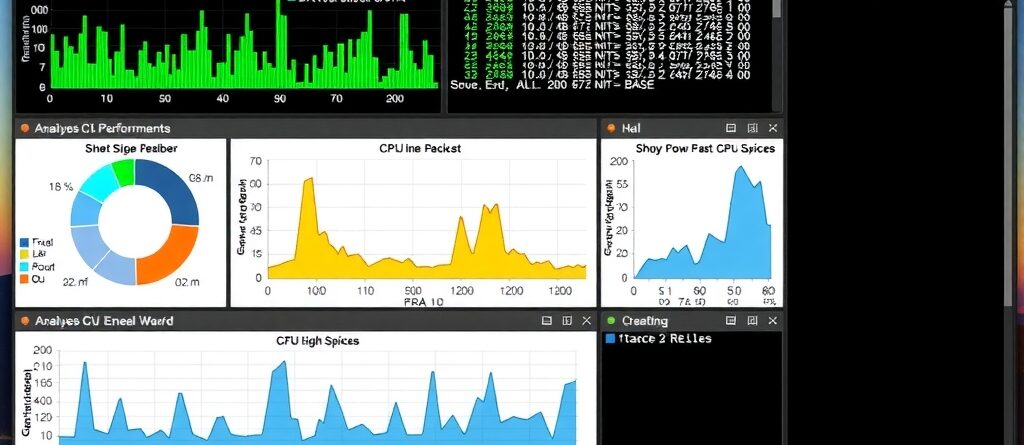
The most basic tool is top. Just type top in your terminal. It shows a real-time list of processes. However, htop is much better because it is visual and allows you to scroll through processes. If you do not have it, install it using yum install htop or apt install htop.
- Look at the CPU column: Sort by CPU percentage to see which process is at the top.
- Check the User: Is it
www-data(your website),mysql(your database), orroot(system)? - Identify the Command: If you see
php-fpmtaking up 90 percent, you know the issue is within your website code or a plugin.
Analyzing Web Server Logs
If htop shows that PHP or Apache is the cause, you need to check your access logs. This is where you can spot bot attacks. Run a command to see the top IP addresses hitting your server. If one single IP address has 5,000 requests in ten minutes, you have found your attacker.
The fastest way to identify a bot attack is to look for repetitive requests to the same URL, especially
xmlrpc.phporwp-login.php, which are common targets for brute force attempts.
Checking for Hidden Malware Processes
Malware often hides its name. You might see a process named kworker or syslogd that is using 100 percent CPU. While these look like system processes, a real system process rarely consumes that much power constantly. Use the ls -la /proc/[PID]/exe command to find where the executable is actually running from. If it is in a /tmp folder, it is almost certainly malware.
Comparison of Resource Hogs
Different issues leave different fingerprints on your server. The following table helps you distinguish between a normal traffic spike and a malicious attack.
| Symptom | Bot Attack | Malware/Miner | PHP/Code Issue | System Process |
|---|---|---|---|---|
| CPU Load | Intermittent Spikes | Constant 100% | Spikes during visits | Steady High Load |
| Log Activity | Thousands of 404/200 | Quiet/Low | Slow response times | No unusual hits |
| Process Name | php-fpm / apache | Random strings / tmp | php-fpm | mysql / backup |
| Network IO | Very High | Moderate | Normal | High (if backup) |
How to Stop the CPU Spike Immediately
Once you identify the cause, you need to take action. Depending on the culprit, your approach will change.
Blocking Malicious IPs
If you found a bot attacking your site, do not just restart the server. The bot will return immediately. Use the firewall to block the IP. For example: sudo ufw deny from [IP_ADDRESS]. This stops the traffic before it even reaches the PHP worker, instantly dropping your CPU usage.
Optimizing PHP-FPM Settings
If your CPU is hitting 100 percent due to legitimate traffic, you may need to adjust your www.conf file. Reducing the pm.max_children can prevent the server from crashing, although some users might experience slower load times. A better long-term fix is implementing a caching layer so the CPU does not have to process the same page every time.
Cleaning Malware and Securing the Server
If you find a cryptominer, killing the process is not enough because they usually have a cron job that restarts the miner every minute. You must find the cron job, delete the malicious files, and then change all your passwords. To prevent this from recurring, you should invest in professional website security services to harden your server environment.
Managing Database Bottlenecks
Sometimes the linux cpu 100 percent issue is actually caused by MySQL. A slow query can lock a table and force the CPU to work overtime. Use the SHOW PROCESSLIST; command in MySQL to see if there are any queries that have been running for hundreds of seconds. Kill those queries and optimize your database tables.
Preventing Future CPU Overloads
Reactive fixing is stressful. Proactive management is the only way to keep a VPS stable. You should not wait for the server to crash to realize you have a problem.
- Install a Monitoring Tool: Use tools like Netdata or Zabbix. These give you alerts when CPU usage crosses a certain threshold, allowing you to act before the site goes down.
- Use a Content Delivery Network (CDN): A CDN like Cloudflare filters out a large percentage of bad bots before they even reach your VPS. This significantly reduces the load on your CPU.
- Limit Login Attempts: For WordPress users, install a plugin that limits login attempts. This stops brute force attacks from taxing your PHP workers.
- Regular Maintenance: Ensure your OS and plugins are updated. Most malware enters through outdated software. If you are not comfortable doing this, look into website maintenance packages to keep your system lean and secure.
- Right-Sizing Your Plan: Sometimes, your business has simply outgrown your current VPS. If your CPU is always at 60 percent and spikes to 100 percent with minimal traffic, it is time to upgrade your web hosting Malaysia plan to a higher tier with more cores.
Remember, a server is like a car. If you redline the engine every day, eventually something will break. Keeping your CPU usage stable ensures a better user experience and longer hardware life.
Summary
Dealing with a linux cpu 100 percent situation requires a systematic approach. You start by using htop to identify the process, checking access logs to spot bot patterns, and scanning for unauthorized files if malware is suspected. Whether it is a rogue PHP script, a brute force attack, or a cryptominer, the goal is to isolate the cause and remove it without affecting the rest of the system. By combining real-time monitoring, aggressive firewalling, and regular maintenance, you can maintain a fast and stable VPS for your business.
You Might Be Wondering (FAQ)
Why does my CPU stay at 100% even after I restart the server?
This usually happens because of a persistent cron job or a startup script. If malware is installed, it is programmed to restart as soon as the system boots up. You need to check your crontab and systemd services to find the trigger.
Can a plugin cause 100% CPU usage?
Yes, absolutely. A poorly coded plugin might create an infinite loop or try to perform a heavy task (like scanning the entire database) every time a page loads. Try disabling plugins one by one to find the culprit.
Is it safe to kill a process using the kill -9 command?
It is effective for stopping a runaway process, but use it with caution. If you kill a critical system process, your server might reboot or crash. Always verify the process name and PID before executing the kill command.
Does more RAM help reduce CPU usage?
Not necessarily. RAM and CPU perform different tasks. However, if your server runs out of RAM, it starts using “Swap” space on the disk. This process is very slow and can actually increase CPU load as the system struggles to manage memory. More RAM helps stability, but it does not fix bad code.
How often should I check my server logs for bots?
You do not need to do it daily, but setting up an automated log analyzer like GoAccess or using a security plugin can notify you of unusual patterns. A weekly review of your top hitting IPs is usually enough for small to medium sites.